QuickConverter Instructions: Advanced CSV Import
2/17/2026
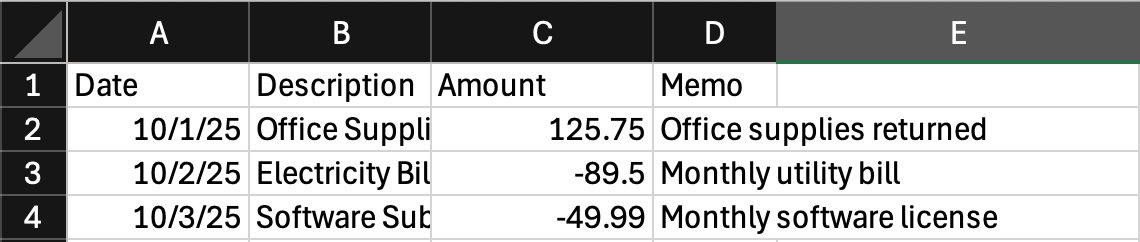
Learn about the advanced features available when importing your bank data as a spread sheet or CSV.
How to convert all positive amount column in 3 steps.
Here are some screen shots from Excel, but it also works the same with Google Sheets and other spreadsheet apps.
- Example formula:
=IF(C2="credit",D2,-1*D2)
Just change the cell references, in this case C2 and D2, to match your spreadsheet. Then copy it down for all rows.

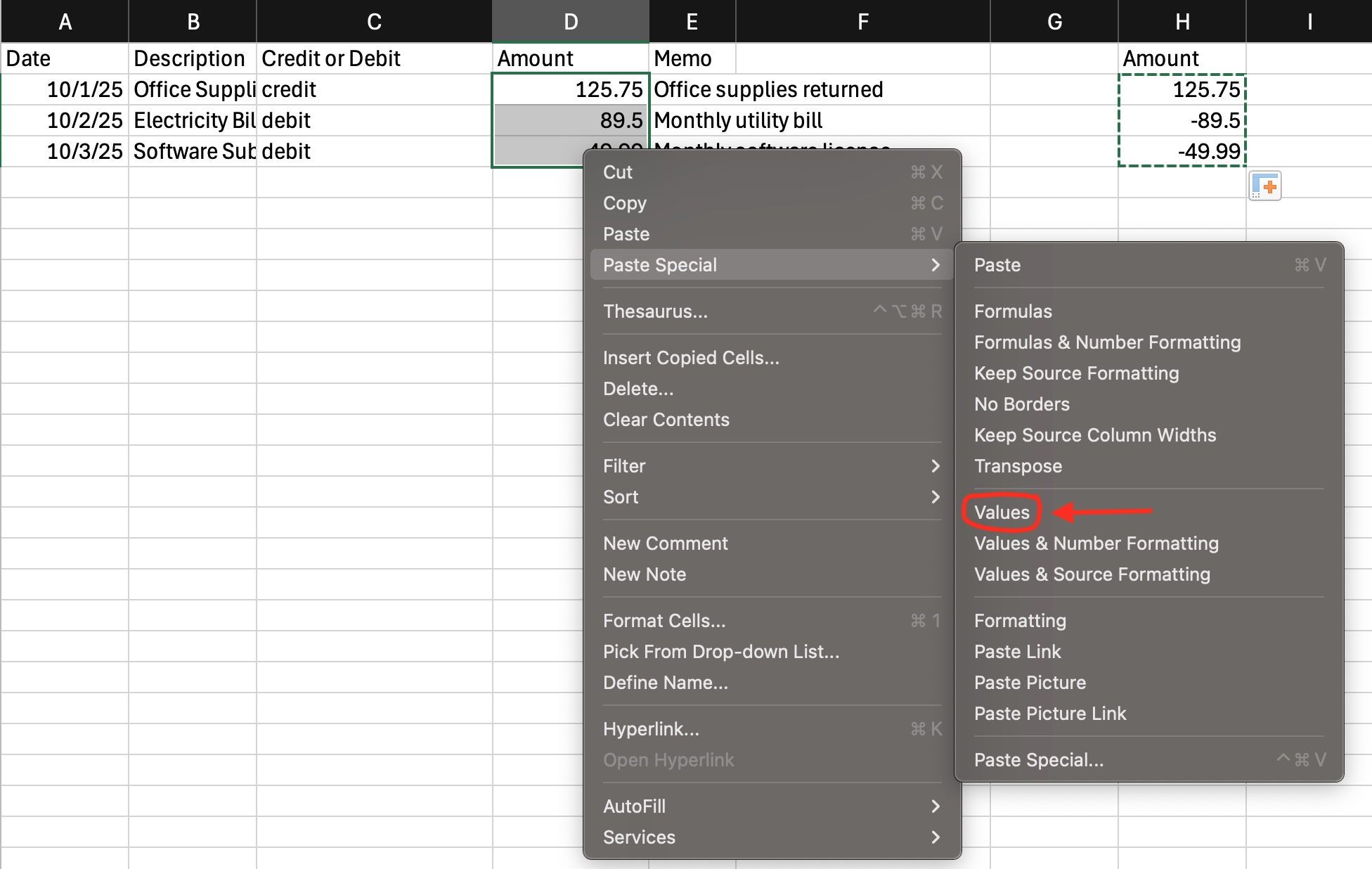
- Copy the new amounts. Then, right click on first value of the old amount column.
Select
Paste Special > Valuesto write the new values as plain numbers.
- Remove all the extra columns, and save your work.