
How to Import an IIF into QuickBooks, the right way
If you have a more recent version of QuickBooks, you'll see the a pop up like this:
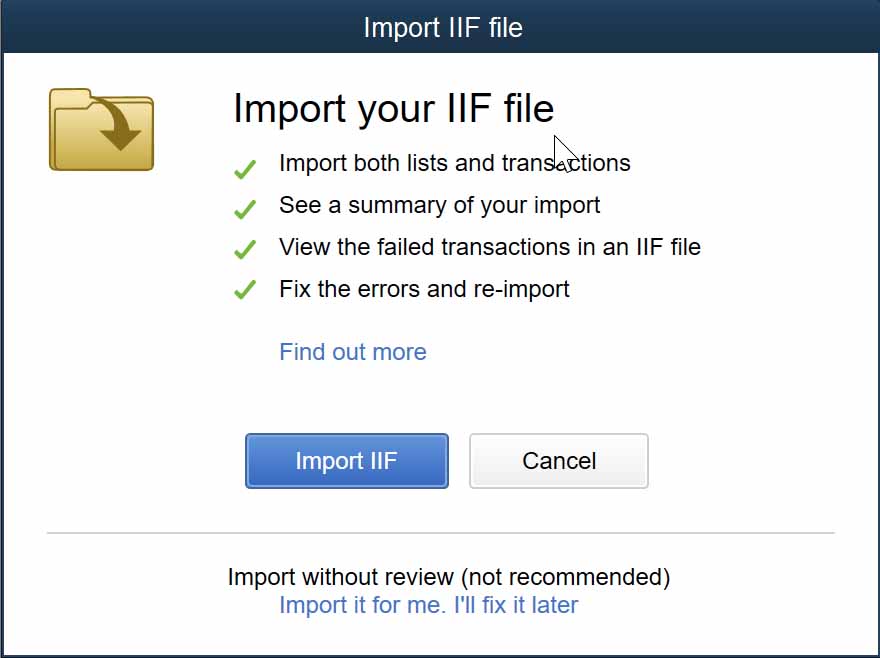
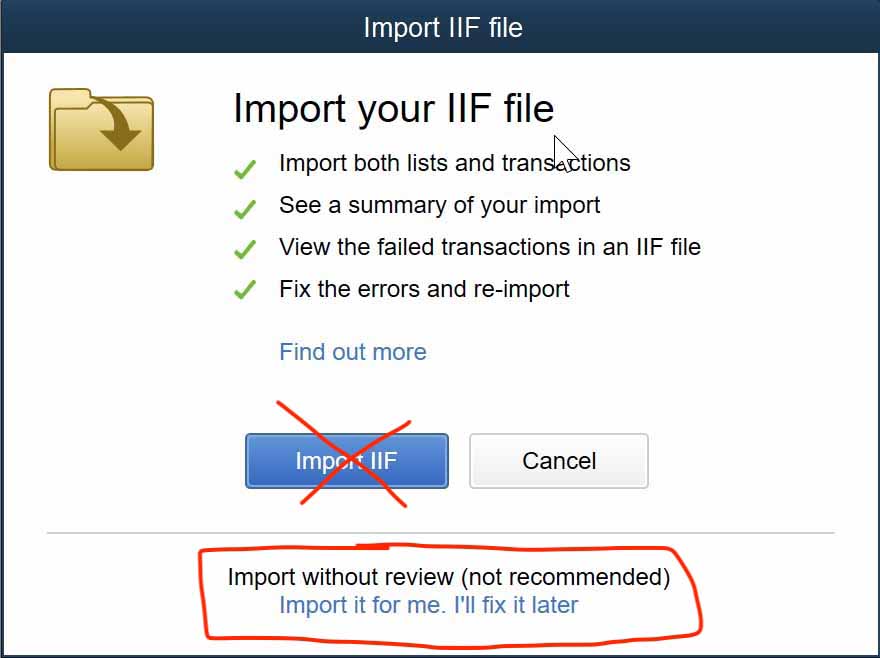
Make sure you choose the link at the bottom to import the IIF. There is a difference, and I demonstrate one of the differences in the video below.
What is the difference between the options?
If I remember correctly, the button, "Import IIF", uses a the same verification used in the QuickBooks WebConnector. It basically validates the entire IIF, and it will produce an error file explaining any problems it encountered. You can actually modify that file, fixing the errors, and import it again...
The problem is that it doesn't import Bank Deposit Transactions correctly. One example, is it omits the payee from the deposit transaction. Super annoying.
The link at the bottom, which I'm assuming is the classic IIF import tool, imports the transactions correctly, and you'll see the payee in the transaction in the account register.
Another example, importing an IIF with payments from customers to Accounts Payable. The button will apply payments to invoices even if the setting is turned off in the company preferences! Seriously unacceptable.
Yet another problem with the new import is that QuickBooks will automatically assign incremental check numbers to "checks" from Bank accounts, even if the check number ("DOCNUM") is left empty. The other import method respects blank check numbers, so your transactions are imported as you expect.
The import link at the bottom will correctly follow the settings when importing customer payments.
What is an IIF?
An IIF is basically a file for importing and exporting QuickBooks data from your company file. It's an older format, and it's very brittle and limited. That's why QuickConverter is migrating to desktop application format that connects to QuickBooks through the WebConnector.
What can I import into QuickBooks with an IIF?
You can import bills, bill payments paid with a credit card, bill payments paid by check, bill refunds, cash refunds, cash sales, credit card refunds, checks, credit card charges, credit memos, deposits, general journal entries, invoices, customer payments, and purchase orders.
You can also import entities like employees, customers, vendors, other names, classes, accounts, and more.
But wait there's more, you can import item receipts, sales tax payments, group items, estimates, statement charges, and timer activity.
The transactions themselves can be split transactions, just like you see in the QuickBooks register.
QuickConverter only supports a portion of the list above, focusing on importing statements for reconciling accounts, like bank accounts, credit cards and loans.
What can't I import into QuickBooks with an IIF?
The list above sounds like everything, but it's not the whole story.
There are many limitations to using IIFs.
You can't import paycheck and sales order data. You can't import advanced inventory fields. Most importantly you can't import the links between transactions, like connections between invoices and payments.
Last thing, you can't use an IIF to import custom fields on transactions either.
And of course, it's only for QuickBooks Desktop, not for QuickBooks Online. They are completely different products.
What are the risks?
Importing the data is rather simple, but there lies the danger. If you import the same document twice, or the transaction dates have an overlap, you'll duplicate some of the data.
Importing entities, employee, customer, vendor, other names, classes, and accounts, works great, unless it already exists in your company file. Then you'll get an error. That's why we separate the entities IIF so you can create new entities in QuickConverter, and import them one time into QuickBooks Desktop.
Just make sure you back up your data before importing. QuickBooks will warn you to backup as well. Just take a couple of minutes to protect your information.
If you run into a problem, it's easy to just restore the backup and it will be like nothing ever happened.