
Troubleshooting Import Problems
Sometimes things don't go right. You take all of the right steps, but for some reason out of your control your programs don't cooperate.
There are situations where importing your transactions.iff file into QuickBooks might not work. I know. I've been there and I've helped numerous people figure out what's going wrong.
Sure, it's really frustrating, especially when it comes to your accounting software.
But keep in mind there's probably a solution, but first we have to figure out what's causing the issue.
There are many reasons iif files can fail to import into QuickBooks, let's go over a few of them.
1. Excel is Your Friend
First thing you should know: you can open the IIF files you downloaded from QuickConverter in Excel! Yes. It's just a tab separated file.
Once you open it in Excel you can verify that the data is there and the right information is there.
If your transaction data is there and it's correct, then we know that something else is causing the problem and it's probably not QuickConverter.
2. Is QuickBooks giving you an error?
Sometimes that's all you need to dig a little deeper with an online search to find out what is causing the issue.
3. Changes to QuickBooks after Importing to QuickConverter
Did you make changes to your accounts in QuickBooks after you imported your lists into QuickConverter?
If that is the case, you need to export your lists from QuickBooks again, and import them back into QuickConverter.
QuickConverter has no way of tracking changes made in QuickBooks. You have to make sure to keep the data in QuickConverter up to date.
4. Transaction Error file
Does your version of QuickBooks provide you with this option when you import an IIF?
When trouble shooting the "Import IIF" button is preferred.
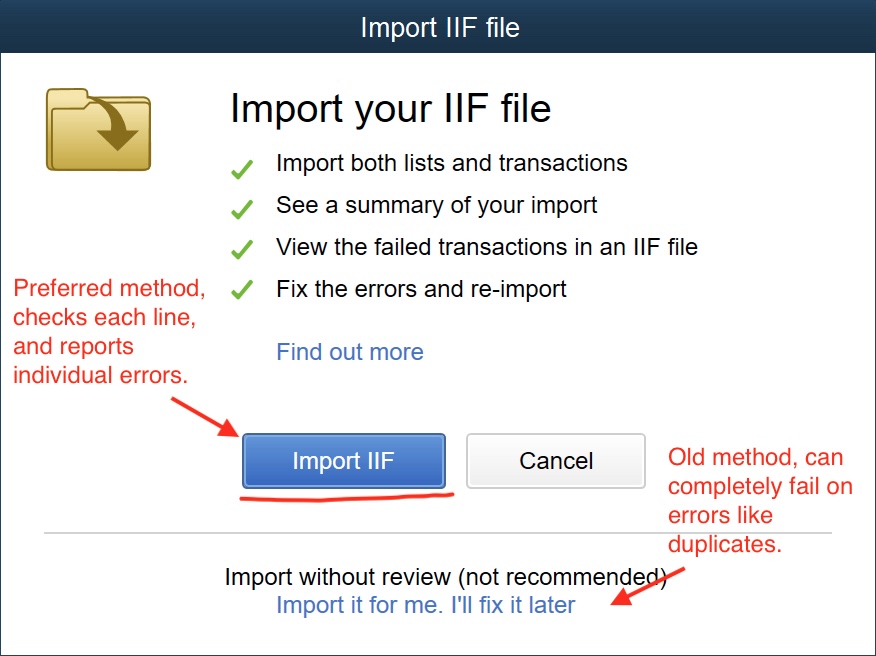
For troubleshooting problems the "Import IIF" button will usually give us more detailed errors than the older import option at the bottom.
When importing using that button fails, it will generate an error file that you can also open in Excel and read the errors in plain English.
The error file is a modified transaction.iif file with errors added in. Each error will be inserted in the row above the offending transaction. This way you can figure out what is going wrong.
Sometimes, QuickBooks will only provide a generic error message but also an error code. The error code is usually a number. Search for that error online for details as to what is happening.
I've come across errors that required repairing the company file itself.
5. Verifying and Repairing the Company File
Have you tried Rebuilding your QuickBooks Company file? It's simple and automated by QuickBooks, read more about it on Intuit's website.
Like I mentioned above, company files can become damaged. Luckily, QuickBooks has some tools to fix the company file. Some are built in and others are downloaded, like File Doctor.
6. Double Check Your Accounts List
Did the import create a new account and put the transactions in that new account's register?
Sometimes, a simple typo can cause some interesting problems.
With certain settings, QuickBooks might create new accounts or other entities automatically when it can't find an exact match.
I've seen QuickBooks create new accounts and put all transactions into the new account. It seemed like nothing was importing, but the problem was my error in spelling the account name correctly.
Wrapping It up
The list above represents a good number of reasons why transactions.iif might not import into QuickBooks correctly.
If you're still running into issues importing an IIF produced by QuickConverter, please reach out and let me know so we can figure out how to make it work for you.